

5 Best Tablets for a Conference Room Schedule Display


Ever walk past a meeting room, unsure if it's free, and have to awkwardly knock or peek through the glass to see if anyone's inside? A room display fixes that instantly. Anyone walking by can see, at a glance, whether or not the room is open, what meeting is happening right now, and what's coming up next. With it, you can avoid meeting interruptions, double-booked rooms, and your team wasting time wandering the floor looking for a place to take their next meeting.
Conference room displays are useful in almost any office, but a few things tend to push a company to finally get them:
- The office recently grew or moved, and now nobody can keep track of which rooms are actually free.
- More people are coming into the office more often, and the old "just walk over and check" system isn’t keeping up.
- An office redesign or lease renewal is in the works, so it's an easy thing to bundle into the planning process.
- Leadership wants to know if the office space is actually being used, and nobody has reliable data to answer.
Whatever brings you here, the underlying pain points are usually the same: you can't tell if a room is free without walking over and checking and there's no simple, building-wide way to see room status at a glance.
Thankfully, all of that can be solved with the right hardware (paired with the right software, of course).
That said, not every screen works the same way. Some mount to the wall with a single cable that handles both power and internet. Others run on batteries. And some are just a regular tablet, like an iPad, running scheduling software.
TLDR: If you can run a cable to the wall, the best solution is often a wall-mounted panel like the Logitech Tap Scheduler or Neat Pad. Otherwise, an iPad is a cheaper, reliable alternative.
Before we get into specific devices, let's start by covering the basics: what a display actually does for your team, when it's usually worth making the switch, and what to weigh before you buy. Then we'll walk through a few different categories of room displays, share real pricing, and explain why the software behind the screen matters just as much as the screen itself.
What does a conference room display actually do for you?
A conference room display lets your team know at a quick glance if a meeting room is available. It saves a surprising amount of time across a whole office, since nobody has to interrupt a meeting, wander the floor, or ask around just to find a place to meet. Conference room displays also make the office feel more organized and professional. Here's more on how it helps teams:
It shows room status at a glance. The display sits right outside the door and shows whether the room is open or booked, usually with a simple color code like green for open and red for booked. Anyone walking by can tell instantly, without knocking, peeking through glass, or interrupting a meeting.
It keeps the calendar accurate in real time. The display connects directly to the room's calendar and updates the second a meeting is booked, moved, or cancelled. That way, everyone has access to the same up-to-date information, which helps prevent annoying double bookings.
It frees up rooms automatically. With auto-release, if nobody checks in within a set window, usually 10-15 minutes, the room opens back up on its own for others to reserve. This way, nobody has to notice an empty "booked" room and manually cancel it, and ghosted meetings stop eating up your meeting room space.
It lets people book a room on the spot. Most displays let you reserve a room right from the screen, which is especially handy when the office is busy and someone needs a space at the last minute.
It gives facilities teams a way to catch problems fast. If a room's speaker is on the fritz or a chair's broken, employees can flag it right from the display instead of emailing IT or hoping someone notices. That report routes straight to facilities, so small issues get fixed before they turn into a room nobody wants to book.
It lets you make each room feel like part of the office. Many displays let you customize the background or branding per room, so a display outside "The Fishbowl" can look different from one outside "Boardroom A." It's a small touch, but it reinforces the idea that these tools were designed for the space, not just installed in it.
It gives you a bird's-eye view of the whole building. Beyond the screen outside each door, the software behind these displays usually includes a dashboard or floor map showing every room's status at once, so facilities and workplace teams can see availability across a floor or building without physically walking it.
It builds a real record of how space gets used. Every booking, check-in, and no-show gets logged automatically. Over time, that data helps leadership make smarter decisions about adding, cutting, or redesigning space, instead of guessing. Curious what that actually looks like? Here's more on meeting room analytics and conference room usage reports.
This list covers the essentials, but there's more a good display can do for your office. See a deeper breakdown of the advantages of conference room schedule displays here.
When should you actually look into this?
Most offices don't wake up one day and decide they need room displays. Something usually pushes the decision. Here are the moments that tend to do it:
- You've grown or moved. More rooms, more floors, or a bigger office often means nobody can keep track of available meeting rooms anymore.
- More people are coming into the office. As hybrid schedules shift and more people show up more days, room demand jumps fast, making it a lot harder to grab a meeting room.
- No-shows are getting out of hand. When people start booking rooms "just in case" because they're worried about losing them, availability gets worse for everyone. A display that automatically frees up no-show rooms is a great way to fix this.
- You're already redoing the office. If a lease renewal or office redesign is already in the works, room displays are a relatively easy thing to bundle into that project.
- Leadership wants reliable usage data. When someone asks "are we actually using all this space?" and nobody has a good answer, a display paired with the right software is usually the first step toward getting that visibility.
What buying criteria should you consider for a conference room display?
When you're comparing conference room displays, a handful of factors do most of the work in narrowing your options, including: price, how much maintenance they'll need, how easy they are to use, what software they integrate with, and how complicated they are to install.
Walking through a few quick questions up front can get you to the right category fast, before you even start comparing specific devices. Here are the most important factors to consider:
- Installation. Can you run power and Ethernet to the wall? If not, make sure to look only at wire-free displays or battery-powered tablets.
- Software integrations. What meeting platform do you use? Microsoft Teams, Zoom, and Google Meet each have their own certified hardware, though most scheduling panels also work across platforms.
- Maintenance. Who's going to manage these devices? Panels usually come with better remote management tools. Tablets are more familiar to your IT team but need more hands-on upkeep, like charging and app updates.
- Scale. How many rooms are you outfitting, and across how many offices? A single office with three rooms has very different needs than a company with 200 rooms across 12 cities.
What are the best conference room display tablets?
Most enterprise teams look past the screen itself and focus on how a display fits into a larger system. They often want centralized, remote device management across many rooms, real platform certifications (as opposed to basic compatibility) with Teams Rooms or Google Workspace, and wired, PoE connections over Wi-Fi for reliability at scale.
On top of that, many enterprises want standardized setups across every room and office so support and rollouts stay simple. If that sounds like your team, here are a few recommendations...

1. Logitech Tap Scheduler
Price: Typically $700–$1,000, depending on the retailer (Dell, CDW)
Best for: Midsize and enterprise companies looking for a reliable, easy-to-deploy hardware.
The Tap Scheduler is one of the most popular panels for companies standardizing on one device. IT teams often favor it because setup is straightforward, cable management is clean, and deployment tends to be highly predictable.
It runs on a single Ethernet cable for both power and data, so you don’t have to worry about charging a battery. It comes with mounts for glass, walls, and mullions, and its LED status light makes room availability visible from down the hallway. It's also a particularly strong fit for teams already using Logitech meeting room hardware or Zoom Rooms setups.
Robin compatibility: Robin integrates directly with the Logitech Tap Scheduler.
2. Neat Pad and Neat Pad Pro
Price: Roughly $1000 for the Neat Pad and $1300 for the Neat Pad Pro, but prices vary depending on the AV reseller you buy from. (CDW, B&H)
Best for: Modern offices looking for a clean, purpose-designed experience.
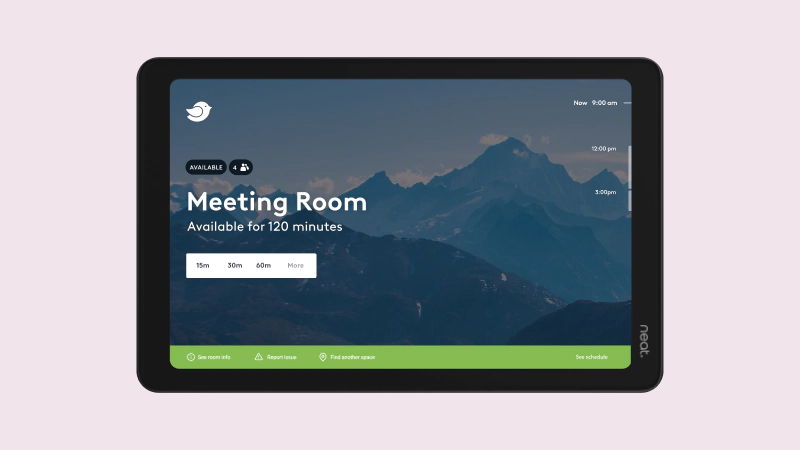
The Neat Pad is a purpose-built meeting room display designed to feel clean, modern, and intuitive from the moment employees interact with it. Its minimalist hardware design and responsive touchscreen create a more polished experience than many repurposed consumer tablets.
Its 8-inch touchscreen works two ways: as a meeting controller inside the room, and as a scheduling display outside it. Like Logi’s Tap Scheduler, it runs on PoE, so it's always powered on. It also has built-in sensors for light and air quality, and works natively with Microsoft Teams.
For larger conference rooms, the Neat Pad Pro is worth a look. It's essentially a bigger, more powerful version of the Pad, with a larger screen and stronger audio pickup for calls that need to reach further across the room. The standard Pad remains the better fit for smaller rooms or simpler scheduling-display needs, where a compact, lower-power device gets the job done.
Companies focused on workplace experience often gravitate toward Neat because the hardware feels intentionally designed for shared office environments rather than adapted for them later.
Robin compatibility: Robin integrates directly with Neat Pads.

3. Crestron TSS-770 / TSS-1070
Price: About $1,000 each (B&H)
Best for: Large companies with a bigger AV budget.
Crestron's panels are built for enterprise environments where centralized management and a polished look matter most. You'll see them a lot in finance, legal, and big tech companies.
Powered over Ethernet (PoE), they eliminate battery management concerns and support clean, professional installations that scale well across large offices. One standout feature is their optional hallway-visible status indicators, which make room availability easy to spot from a distance.
Robin compatibility: Robin integrates directly with Crestron displays.
What are the best budget-friendly tablet options?
If your team has limited budget, don’t stress, a regular tablet running the right scheduling software still gets the job done. Whether you want flexibility, familiar hardware, or the lowest possible cost per room, here are the top choices to pick from.

4. Apple iPad or iPad Mini
Price: Typically $450-$750 depending on the model and storage (Apple)
Best for: Offices that want familiar, easy-to-replace hardware.
For a lot of companies, the iPad hits the sweet spot between price, design, and performance. Your IT team already knows how to support it, and if you ever stop using it as a room display, you can repurpose it for visitor check-in or another kiosk. One thing to plan for: iPads aren't built to stay plugged in for years straight, so a smart plug or PoE adapter helps manage charging and protect the battery over time.
If you’re also on the look for a mount, these two brands are worth a look: Heckler and iPort. Heckler mounts are built tough and reliable, which is why we use them all over our own office. If you want something sleeker, iPort makes a more polished mount, including options with MagSafe so the iPad just snaps on and off.
Robin compatibility: Robin integrates directly with both iPads and iPad Minis.

5. Android Tablets with Google Play
Price: Around $350 for a mid-range model like the Samsung Galaxy Tab A9+ (B&H)
Best for: Budget-conscious teams and smaller offices.
Any Android tablet with access to the Google Play Store is the most budget-friendly option on this list. Because it has full Google Play access, you can install the Robin app directly, no extra setup or workaround needed.
Just know that build quality and performance will vary by model, but for basic scheduling, a mid-range Android tablet handles the job just fine, and it's cheap enough to replace if one breaks.
Robin compatibility: Robin's Android app installs directly from the Google Play Store on any compatible Android tablet. Learn more about Robin’s compatibility requirements before purchasing.
How do these options compare at a glance?
Does the software matter as much as the hardware?
Yes, your room scheduling software matters just as much as the hardware it runs on (if not more). The screen is just the interface. The software behind it decides whether the room stays accurate and whether people actually trust and use it.
When looking at hardware and software options, make sure to look for options that offer these key features:
- Does it update in real time? If a meeting is cancelled, the screen should show that right away, not five or ten minutes later.
- Does it release no-shows automatically? If nobody checks in, the room should reopen on its own instead of sitting empty but "booked" all day.
- Does it sync with the calendars your team already uses? Google Calendar and Microsoft 365 support matters more than almost any hardware feature. It's what makes people actually use the system.
- Can it handle last-minute changes and recurring meetings without extra work? This is where cheaper scheduling apps tend to fall short.
- Can you customize how it looks? A consistent, branded look across every room makes the whole office feel more polished.
This is just the short list of features to look for. For a closer look at what separates good room-booking software from the rest, check out our full guide to meeting room booking software, which covers features like check-in options, analytics, and admin controls in more depth. If you're evaluating tools for more than just meeting rooms, here's what to look for in workspace management software more broadly.
Frequently asked questions
What's the best conference room display for most offices? A PoE-powered panel like the Logitech Tap Scheduler or the Neat Pad is the safest bet for most companies. It's reliable and easy for IT to manage. If your budget is tight, an iPad will work just as well for basic scheduling.
Do I need a dedicated panel, or will a regular tablet work? A regular tablet works fine, as long as it's locked into kiosk mode and someone keeps it charged. Dedicated panels cost more, but they're easier to manage remotely as your room count grows.
How much should I budget per room? Plan for about $250–$450 per room if you’re a leaner team with a limited budget. For larger teams, enterprise panels usually run $700–$1,500 or more per room, not counting mounts or installation.
What matters more: the hardware or the software? The hardware is an important decision but your software is ultimately what matters most day to day. It's what keeps the room accurate with real-time updates, automatic no-show release, and calendar syncing.
Do conference room displays work with Microsoft Teams and Google Calendar?
Yes, most displays and scheduling software sync with both, along with Google Workspace and Microsoft 365/Exchange. Robin, for example, works with both Google Workspace and Microsoft Teams, and integrates with all Neat and Logitech products.
Can employees book a room directly from the display, or do they need an app?
Most displays let you book a room right from the screen with one tap, no app required. That said, your team can still book from Google Calendar, Outlook, or a mobile app, and the display will update automatically either way.
What happens if the WiFi goes down? Will the display still work?
It depends on the device. Battery-powered and WiFi-only displays will show outdated information until the connection comes back. PoE panels with a wired Ethernet connection tend to be more reliable during a WiFi outage, since they're not depending on wireless.
Is a conference room display worth it for a small office with only one or two rooms?
Yes, even a single room benefits from a display, especially if people currently have to guess or interrupt a meeting to check whether a room is available. A budget option like an Android tablet or iPad usually makes the most sense at this scale, since the cost per room is low.
Can I use a tablet I already own instead of buying new hardware?
Often, yes. If you have an old iPad or Android tablet sitting around, most room-scheduling software can run on it as long as it's a supported OS version. You'll still want a mount and a way to keep it charged or powered.
Does a conference room display show meeting titles, or just "busy" and "free"?
That's usually a setting you control. Most software lets you choose between showing full meeting details or just a generic "busy" status, which matters for legal, HR, or leadership meetings where the topic shouldn't be visible in a hallway.
How long does it take to install a conference room display?
It depends on what hardware and software you’re using, but a single display usually takes 15–30 minutes to mount and connect once the hardware is on hand. PoE panels that need an electrician to run new cable will take longer and should be planned as part of a broader office project.
Can I put my company logo or branding on the display?
Yes, most room-scheduling software lets you customize the background or add a logo, so the display matches the rest of your office branding instead of looking like stock hardware.
Final thoughts
Every option above will make your rooms easier to use. The right pick depends your budget, your preferences, and how many rooms you're setting up. But remember, no matter which device you choose, the software running on it is what decides whether that room stays accurate day after day.
Robin works with every device on this list, and syncs with both Google Calendar and Microsoft 365 right out of the box. See all Robin supported hardware.